For a while now I’ve been searching for an automated way to have our clients with higher security needs (mostly local government offices.)
Finally, I discovered this post on how to do what I was looking for using Intune and ServiceUI.exe.
ServiceUI.exe is a part of the old Microsoft Deployment Toolkit, which has since been deprecated, but I was able to extract the executable and simply use it as is.
I had to make a few small adjustments to the script to make it behave with Datto RMM but now it works quite nicely.
With Datto RMM specifically, you’ll need to attach ServiceUI.exe, the PowerShell script, setup.bat and your company_logo.png to the custom component. (Company logo is technically optional, but it does make things look a lot more professional.)
The actual component will be “Batch” and only runs the following command to invoke ServiceUI.exe.
ServiceUI.exe -process:explorer.exe setup.bat
Here is the contents of setup.bat:
%windir%\SysWOW64\WindowsPowerShell\v1.0\powershell.exe -Executionpolicy bypass -file .\Set-BitlockerPIN.ps1
And here is the PowerShell script itself:
<#
.SYNOPSIS
    This script sets up BitLocker with a user-defined PIN on the operating system volume.

.DESCRIPTION
    The script creates a directory for BitLocker logs, prompts the user to set a BitLocker startup PIN through a GUI form, and configures BitLocker with the specified PIN. It ensures the PIN meets complexity requirements and logs the process. The script also handles the backup of the BitLocker recovery key to Azure AD.

    The PIN supports letters, numbers, and special characters (Enhanced PIN). To use alphanumeric PINs, ensure the "Allow enhanced PINs for startup" Group Policy is enabled on the device.

    A company logo is displayed on the PIN input form. The logo file should be named "Company_logo.png" and placed in the same directory as the script. If the logo file is not found, a warning will be displayed, but the script will continue to execute.

.PARAMETER None
    This script does not take any parameters.

.EXAMPLE
    Run the script without any parameters:
    .\Set-BitlockerStartupPIN.ps1

.NOTES
    Author: Nivi Kolatte
    Date: 15.09.2024
    Version: 1.0
    This script requires administrative privileges to run.
    Ensure that "Company_logo.png" is available in the script's directory for the logo to be displayed on the form.

#>

# Create Company\BitLocker folder if it doesn't exist
$bitlockerFolder = "C:\ProgramData\Company\BitLocker"
if (-not (Test-Path $bitlockerFolder)) {
    New-Item -Path $bitlockerFolder -ItemType Directory -Force | Out-Null
}

# Create log file name with timestamp
$timestamp = Get-Date -Format "yyyyMMdd_HHmmss"
$logFile = Join-Path $bitlockerFolder "BitLockerSetup_$timestamp.log"
$tagFile = Join-Path $bitlockerFolder "BitLockerSetupComplete.tag"

function Log-Message {
    param([string]$message)
    Add-Content -Path $logFile -Value "$(Get-Date) - $message"
}

function Is-PinComplex {
    param([string]$pin)

    # Check for sequential numbers (including partial sequences)
    if ($pin -match '01234|12345|23456|34567|45678|56789|67890') { return $false }

    # Check for reverse sequential numbers
    if ($pin -match '98765|87654|76543|65432|54321|43210') { return $false }

    # Check for sequential letters (ascending)
    if ($pin -imatch 'abcde|bcdef|cdefg|defgh|efghi|fghij|ghijk|hijkl|ijklm|jklmn|klmno|lmnop|mnopq|nopqr|opqrs|pqrst|qrstu|rstuv|stuvw|tuvwx|uvwxy|vwxyz') { return $false }

    # Check for sequential letters (descending)
    if ($pin -imatch 'zyxwv|yxwvu|xwvut|wvuts|vutsr|utsrq|tsrqp|srqpo|rqpon|qponm|ponml|onmlk|nmlkj|mlkji|lkjih|kjihg|jihgf|ihgfe|hgfed|gfedc|fedcb|edcba') { return $false }

    # Check for repeated characters (6 or more repetitions)
    if ($pin -match '(.)\1{5,}') { return $false }

    # Check for common patterns (repeating sequences of 3+ characters)
    if ($pin -match '(.{3,})\1') { return $false }

    # Check if all characters are the same
    if ($pin -match '^(.)\1*$') { return $false }

    # Check for repeating pairs
    if ($pin -match '(.{2})\1+') { return $false }

    return $true
}

function Show-PinInputForm {
    Add-Type -AssemblyName System.Windows.Forms
    Add-Type -AssemblyName System.Drawing

    $form = New-Object System.Windows.Forms.Form
    $form.WindowState = [System.Windows.Forms.FormWindowState]::Maximized
    $form.FormBorderStyle = [System.Windows.Forms.FormBorderStyle]::None
    $form.BackColor = [System.Drawing.Color]::White
    $form.TopMost = $true

    # Logo
    $logoBox = New-Object System.Windows.Forms.PictureBox
    $logoBox.Size = New-Object System.Drawing.Size(100, 50)
    $logoBox.Location = New-Object System.Drawing.Point(20, 20)
    $logoBox.SizeMode = [System.Windows.Forms.PictureBoxSizeMode]::Zoom
    $logoPath = Join-Path $PSScriptRoot "Company_logo.png"
    if (Test-Path $logoPath) {
        $logoBox.Image = [System.Drawing.Image]::FromFile($logoPath)
    } else {
        Write-Warning "Logo file not found: $logoPath"
    }

    # Title
    $label = New-Object System.Windows.Forms.Label
    $label.Text = "Set BitLocker Startup PIN"
    $label.Font = New-Object System.Drawing.Font("Segoe UI Semibold", 20, [System.Drawing.FontStyle]::Regular)
    $label.AutoSize = $true
    $label.Location = New-Object System.Drawing.Point(20, 100)

    # Instructions
    $instructionLabel = New-Object System.Windows.Forms.Label
    $instructionLabel.Text = "PIN must be at least 6 characters long and not use simple patterns. Letters, numbers, and special characters are allowed."
    $instructionLabel.Font = New-Object System.Drawing.Font("Segoe UI", 13)
    $instructionLabel.AutoSize = $true
    $instructionLabel.Location = New-Object System.Drawing.Point(20, 140)

    # PIN Input
    $pinInput = New-Object System.Windows.Forms.TextBox
    $pinInput.PasswordChar = "*"
    $pinInput.Font = New-Object System.Drawing.Font("Segoe UI", 12)
    $pinInput.Size = New-Object System.Drawing.Size(300, 25)
    $pinInput.Location = New-Object System.Drawing.Point(20, 180)

    # PIN Confirmation Input
    $pinConfirmInput = New-Object System.Windows.Forms.TextBox
    $pinConfirmInput.PasswordChar = "*"
    $pinConfirmInput.Font = New-Object System.Drawing.Font("Segoe UI", 12)
    $pinConfirmInput.Size = New-Object System.Drawing.Size(300, 25)
    $pinConfirmInput.Location = New-Object System.Drawing.Point(20, 220)

    # Set PIN Button
    $submitButton = New-Object System.Windows.Forms.Button
    $submitButton.Text = "Set PIN"
    $submitButton.Font = New-Object System.Drawing.Font("Segoe UI Semibold", 12, [System.Drawing.FontStyle]::Regular)
    $submitButton.Size = New-Object System.Drawing.Size(100, 30)
    $submitButton.Location = New-Object System.Drawing.Point(20, 260)

    # Error Label
    $errorLabel = New-Object System.Windows.Forms.Label
    $errorLabel.ForeColor = [System.Drawing.Color]::Red
    $errorLabel.Font = New-Object System.Drawing.Font("Segoe UI", 10)
    $errorLabel.AutoSize = $true
    $errorLabel.Location = New-Object System.Drawing.Point(20, 300)

    $form.Controls.AddRange(@($logoBox, $label, $instructionLabel, $pinInput, $pinConfirmInput, $submitButton, $errorLabel))

    $script:pin = $null
    $allowedCharsPattern = '^[a-zA-Z0-9!@#$%^&*()_\-+=\[\]{};:''",.<>?/\\|`~]+$'

    $submitButton.Add_Click({
        $enteredPin = $pinInput.Text
        $confirmedPin = $pinConfirmInput.Text
        if ($enteredPin.Length -ge 6 -and $enteredPin -match $allowedCharsPattern -and $enteredPin -eq $confirmedPin) {
            if (Is-PinComplex $enteredPin) {
                $script:pin = $enteredPin
                Log-Message "PIN set successfully"
                $form.Close()
            } else {
                $errorLabel.Text = "PIN is too simple. Please avoid sequential characters, repeating patterns, or easily guessable combinations."
            }
        } elseif ($enteredPin -ne $confirmedPin) {
            $errorLabel.Text = "PINs do not match. Please try again."
        } else {
            $errorLabel.Text = "PIN must be at least 6 characters long. Letters, numbers, and special characters are allowed."
        }
    })

    $form.Add_Shown({$form.Activate()})
    [void]$form.ShowDialog()

    return $script:pin
}

Try {
    $osVolume = Get-BitLockerVolume | Where-Object { $_.VolumeType -eq 'OperatingSystem' }

    # Detects and removes existing TpmPin key protectors as there can only be one
    if ($osVolume.KeyProtector.KeyProtectorType -contains 'TpmPin') {
        $osVolume.KeyProtector | Where-Object { $_.KeyProtectorType -eq 'TpmPin' } | ForEach-Object {
            Remove-BitLockerKeyProtector -MountPoint $osVolume.MountPoint -KeyProtectorId $_.KeyProtectorId
        }
    }

    # Sets a recovery password key protector if one doesn't exist, needed for TpmPin key protector
    if ($osVolume.KeyProtector.KeyProtectorType -notcontains 'RecoveryPassword') {
        Enable-BitLocker -MountPoint $osVolume.MountPoint -RecoveryPasswordProtector
    }

    # Show PIN input form and get PIN from user
    $userPIN = Show-PinInputForm

    Log-Message "User PIN after form: $($userPIN -replace '.', '*')"  # Log masked PIN for security

    if (-not $userPIN) {
        Log-Message "PIN input seems to be empty or invalid."
        throw "PIN input cancelled or invalid. BitLocker not enabled."
    }

    Log-Message "Attempting to convert PIN to SecureString"
    $devicePIN = ConvertTo-SecureString $userPIN -AsPlainText -Force

    Log-Message "Enabling BitLocker with the provided PIN"
    Enable-BitLocker -MountPoint $osVolume.MountPoint -Pin $devicePIN -TpmAndPinProtector -ErrorAction Stop

    # Gets the recovery key and escrows to Azure AD
    (Get-BitLockerVolume).KeyProtector | Where-Object { $_.KeyProtectorType -eq 'RecoveryPassword' } | ForEach-Object {
        BackupToAAD-BitLockerKeyProtector -MountPoint $osVolume.MountPoint -KeyProtectorId $_.KeyProtectorId
    }
    Log-Message "BitLocker enabled successfully and recovery key backed up to Azure AD"

    # Create tag file
    New-Item -Path $tagFile -ItemType File -Force | Out-Null
    Log-Message "Created tag file: $tagFile"

    Exit 0
}
Catch {
    $ErrorMessage = $_.Exception.Message
    Log-Message "Error: $ErrorMessage"
    Write-Warning $ErrorMessage
    Exit 1
}
This is what the prompt will look like when all is set and done.
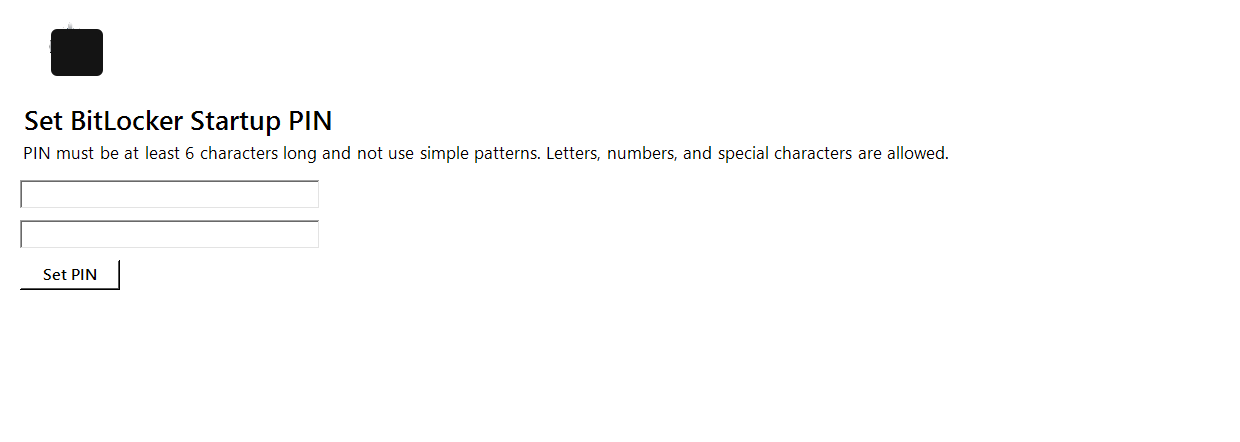
Once they set their PIN, the user will need to reboot their workstation.